
Message Reports
Message reports evaluate the performance of individual messages.
Use message reports to analyze message performance, manage message status, and view detailed engagement and delivery data. Metrics can take 10-15 minutes to update after our servers have received an event.
When targeting Android devices, Airship sends messages to both opted-in and opted-out devices. Regular notifications are sent to opted-in devices and silent push notifications are sent to opted-out devices. Both silent and alerting sends appear in the message report.
Open a message report
For all messages except Sequences:
- Go to Messages, then Messages Overview.
- Select the chart icon () for a message.
For Sequences:
- Go to Messages, then Messages Overview.
- Select the chart icon () for a Sequence.
- Select the chart icon () for a message.
You can also view message reports for Sequence tests. See Sequence Test Report.
Message report sections
Message reports include several sections for managing messages and analyzing performance:
- Header — Basic information and management options
- Performance — Engagement metrics, statistics, and channel breakdowns
- Message Detail — A preview and summary of the message
- Events — Custom Events attributed to the message
Manage messages
The header of a message report contains its name and creation date, time, and time zone.
- If the message does not have a message name, it will instead display the notification text.
- If the message was removed from a Message CenterA place in your app where you can display persistent rich messages, including HTML, video, etc. Similar to email, Message Center represents both the medium (the in-app inbox) and the message type (the messages you send to the inbox)., it will also state “Removed from inbox” and the removal date, time, and time zone.
Automations and Sequence messages also display their Message LimitsLimits that cap the number of messages you can send within a specified time frame, preventing you from over-messaging your users. They are set at the project level. status. Select Edit to manage your project’s message limits.
Duplication and editing options vary depending on the origin composer:
| Action | Description | Steps |
|---|---|---|
| Duplicate | Create a copy of a message and open it for editing. For messages created with the Message composer or as A/B test variants, you can duplicate to the Message or Automation composer. You must complete the composer steps to send the new message. | Select the plus icon (). |
| Edit (Message) | For recurring messages created with the Message composer, open the message for editing. Recurring messages that include multi-language localized content cannot be edited. | Select the pencil icon (). |
| Edit (Automation) | Open the message for editing. | Select the pencil icon (). |
| Edit (In-App Automation or Scene) | Open the message for editing. Availability depends on message status. Active messages can be edited at any time. An Expired or Stopped message can be edited and its end date extended, making it active again, within a grace period of 14 days. After 14 days they can only be duplicated. | Select the pencil icon (). |
Change message status
Ongoing messages display their status in the header, with icons to change the status, when available.
Use the following options to change Automation status:
- Select the pause icon () to pause an active message.
- Select the play icon () to resume a paused message.
- Select the X icon () to delete the message and message report, and cancel its undelivered messages.
Use the following options to change In-App Automation and Scene status:
Select the stop icon () to change the status of an Active message to Stopped. This is effectively the same as specifying an end date, immediately applying an end date of “now.” Active messages can be stopped at any time.
Select the play icon () to change the status of a Stopped or Expired message to Active. This is effectively a shortcut to editing the message and either eliminating or specifying an end date. See Restart an in-app automation or scene.
Expired messages can be restarted within a grace period of 14 days. After 14 days they can only be duplicated.
Sequence message status cannot be managed from the header. Instead, go to the Sequence ManagerA preview of the messages in a Sequence, with options for editing and testing, and for running experiments. to make changes to the Sequence or its messages.
Performance
Data in the Performance section varies depending on message type and creation method. For Scene-specific information, see Performance in the Reporting section of About Scenes.
Latest Message Activity appears for messages created using the Message and Automation composers. It lists the username, date, time, and activity associated with the most recent change to the message. This data is available for 90 days after message creation. For messages with more than one activity, select Show all to view all activity.
Statistics
All message reports display relevant statistics for the message type. For messages sent via push, there are counts for Total Alerting Sends, Total Alerting Not Sent, Silent Sends, and SMS Clicked. Hover over Total Alerting Not Sent to view the breakdown of reasons why messages were not delivered and a count for each reason.
SMS Clicked is the number of users who engaged with an Airship-shortened linkConverts HTTP/HTTPS URLs in your SMS messages to unique, shortened URLs for your recipients. The shortened URLs reduce the total number of characters that links consume and produce click tracking metrics, helping you determine how effective your SMS messages are in driving traffic to your links. in your message. Airship cannot gather data for non-shortened links. An SMS message over 160 characters appears to the user as successive messages. See: SMS content: Appearance and behavior.
Select the question mark icon () for other definitions. Direct Engagements will not appear if the message included a send to an Open Channel.
Engagement Over Time
Engagement data is available for all messages sent via push. The Engagement Over Time bar chart includes engagement data for 12 hours following a message being sent.
By default, the chart displays Direct Engagement for the message sent, such as a direct open on an app, a Message Center message open, a click on a web notification, or a click on links in your message. If you send your message using Optimal Send TimeAn algorithm that determines the best hour for optimal engagement activity — when each individual member of your audience is most likely to receive and act on your message. iOS, Android, and Fire OS platforms only. or other scheduling practices to optimize the times when your audience receives their message, you may see the graph spike at times when your audience receives the message.
For Scene RolloutsA method of limiting a Scene’s total or targeted audience by setting an adjustable percentage., the day’s percentage is included in the chart. If the setting was changed that day, it appears as a percentage range.
Where available, select options to see additional information:
Platform Breakdown: Displays the chart data broken down by platform, such as iOS, Android, and Web.
Attributed Engagement: Displays the message’s total engagement attributed to the notification. For messages sent to mobile app platforms, this uses our Influenced Opens metric. For messages sent to a web browser, this uses our Attributed Web Sessions metric. See Definitions below.
Tip The chart remembers your selected preferences. If you visit a message report and enable Channel Breakdown, the next report you view will default to this presentation as well.
For SMS:
- Use Platform Breakdown if you sent a message over SMS and another channel. This separates the Engagement Over Time graph by channel.
- Attributed Engagement does not apply to SMS.
- Additional Datasets do not apply to SMS- or MMS-only messages.
Following the bar chart are metrics tables for channels, and also for In-App Message and Message Center (Rich Page), if included in the message:
- Channel: Notification sends and engagement metrics by channel
- In-App Messages: The total number of message views by opt-in and opt-out status
- Message Center (Rich Page): The total number of message sends, views, and deletions
For messages using External Data FeedsA connection to an external API. When you send a message, Airship uses a response from that API to personalize messages. with feed error behavior set to “Abort sending the message," the total number of messages that could not be sent, if any, are noted for each channel.
Definitions
These definitions apply to the Engagement Over Time chart in the Performance section of a message report.
- In-App Message Send
- The number of in-app and silent sends associated with the message.
Silent sends are sent via Background ProcessingAn optional delivery feature that wakes the app and gives it some running time to perform work, such as downloading content for future display. Data included in the push notification is available for background processing, e.g., to send URLs and then download that content. iOS only..
An in-app message Send is logged for these scenarios:
An in-app message, with or without an associated push, is sent to an opted-out device. Because opted-out devices will only receive the in-app message, this is counted as an in-app message Send.
An in-app message only is sent to an opted-in device.
Note An in-app message combined with a push notification that is sent to an opted-in device will always be counted as a notification Send rather than an in-app message Send.
- In-App Message View
- The number of times an in-app message was displayed.
An in-app message View is logged when a user encounters an in-app message, whether the in-app message was sent by itself or in combination with a push notification. Either of the two scenarios that result in an in-app message Send being logged will most likely also result in a View on open, assuming a user opens the app before the in-app message expires.
Note An in-app message combined with a push notification that is sent to an opted-in user can also result in a View; if the user opens the app without tapping the push notification, the in-app message will still display, counting as a View.
- Attributed Web Sessions
- Attributed web sessions are the total number of sessions attributed to a push notification. An attributed session is a session that occurs within a 12-hour window of a web push notification. Sessions are generated when a user directly visits the website with the Airship Web SDK present, or by clicking a web notification that leads the visitor to the site. The page the user visits must have the Web SDK installed to track sessions.
If a user visits the web page within 30 minutes prior to when the web push
notification arrives, and they:
- Click the web push notification, a new attributed session will be generated.
- DO NOT click the web push notification, an attributed session will be generated only if there has been 30 minutes of inactivity on the website.
Email Performance
For messages that include the email channel, Performance includes Email Performance and Legacy Email Performance subsections that contain email-specific statistics.
Select Legacy Email Performance for older data and formats. The legacy section has more immediate indicators of email dispatch and engagement since it is not subject to the same ETL and cache delays that provide increased accuracy for Email Performance data.
Email Engagement by Domain, Top Links by URL, and Click Heat Map
Following email statistics in Email Performance are data unique to email message reports:
Engagement by Domain lists selected statistics for the top 20 recipient domains by send volume. Each email address in the audience is counted as a send. Select a column header to sort.
Top Links by URL lists the top 10 URLs that were clicked and counts for Total Clicks and Unique Clicks.
The Click Map helps you learn how to optimize message layout. Within a preview of the message body, any named link clicked by a user is highlighted. The volume of clicks is indicated by a highlight color in a gradient from red (most) to yellow (fewest). A table lists the same links with click counts and the percentage of clicks relative to all links in the message. You can filter the preview and table by device type and Total Clicks or Unique Clicks.
By visually representing where users click most frequently, you can see which parts of an email attract the most attention and measure the effectiveness of call-to-action buttons, images, and text according to their placement. Use this information to ensure that key elements are positioned where they are most likely to be seen and engage users.
Use Preview Data to see how personalized content in your message appears when populated with user data instead of default values. This can reveal links that might appear in the table but not in the message body due to conditional logic. See Previewing personalized content.
Retargeting Segments
Audience retargeting is a method for sending follow-up messages to the audience of a parent message. This method is available for push notifications (app and web) and email in the Message composer.When a message generates retargeting SegmentsA grouping of audience members selected by unique or shared identifiers. Multiple identifiers can be combined within a Segment., they are listed under Retargeting Segments in the Performance section of the report. The audience size (recipient count and percentage of total audience) is shown for each Segment.
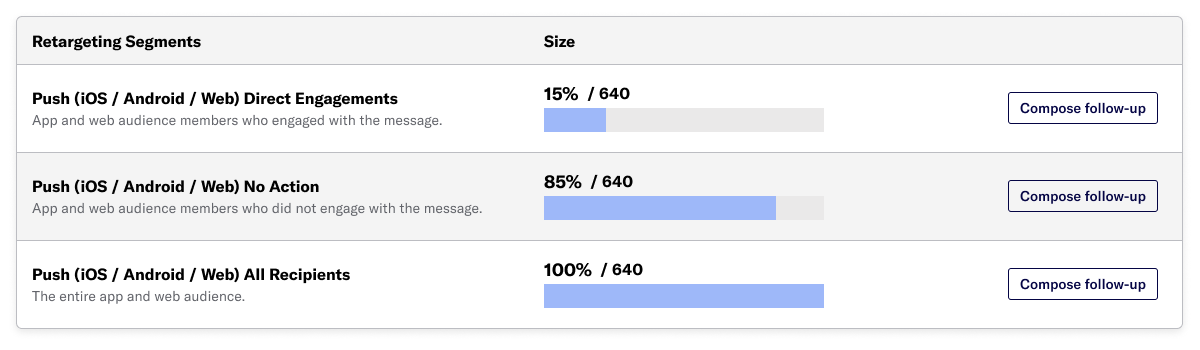
For more information and steps to send a follow-up message, see Retarget a message audience.
Message Detail
Message Detail in a message report displays the same information shown in the Review step when creating messages. Select the arrows to page through the various previews. The channel and display type dynamically update in the dropdown menu above. You can also select a preview directly from the dropdown menu.
Retargeting Segments — If a push notification was used to generate Retargeting Segments, the Audience table shows Retargeting as enabled. If a push notification was sent to a retargeting segment, the Audience table displays the Type as Retargeting Message, specifies the segment of the parent message, and lists the parent message as a link to its message report.
Delivery by Time Zone — The Delivery by Time Zone table is included for messages delivered according to a user’s local time zone. Metrics for Alerting Sends and Engagement are provided for each time zone. The bottom row lists the total number of time zones with zero sends. This represents the number of time zones where none of your message recipients are located.
Scenes — Scenes have a Scene Detail section instead of Message Detail. See Scene Detail in the Reporting section of About Scenes.
Events
The Events section lists events directly and indirectly attributed to the message. Select Download CSV to export the data. The Events section is only displayed if you have Custom EventsEvents that indicate that a user performed a predefined action, such as adding an item to a shopping cart, viewing a screen, or clicking an Unsubscribe button. Custom Events can trigger automation, including Sequences and Scenes. You can code them into your app or website, or send them to Airship from an external source using the Custom Event API. Custom Events contain properties that you can use to personalize messages. enabled. For Scene-specific information, see Events in the Reporting section of About Scenes.
The following data is listed in the Events table:
| Data | Description |
|---|---|
| Event Name | A human-readable name assigned to a particular Custom Event |
| Notification Attribution | Displays whether your event was directly or indirectly attributed to the message |
| Location | The source from which the event originates |
| Count | The number of instances of the event |
| % of Total Count | The Count divided by the Total Count listed on the bottom row |
| Value | The monetary or other value generated by the event |
| Average Value | The Value divided by Count |
These reported events are also accessible via Real-Time Data StreamingA service that delivers user-level events in real time to your backend or third-party systems using the Data Streaming API. and Performance AnalyticsA customizable marketing intelligence tool that provides access to reports and graphs based on engagement data.:
- Message Impressions
- Message Dismissed
- Buttons Clicked (as Custom Events)
SMS Events
For SMS, the Events table lists the individual events that resulted from the send. These events come from the Short Message Service Center (SMSC), explaining where a message is: whether it has been dispatched, delivered, etc. If you’re familiar with Real-Time Data StreamingA service that delivers user-level events in real time to your backend or third-party systems using the Data Streaming API., these events correspond to delivery_report events broken down by event name. Each individual recipient may result in multiple events along the path of the message.
The following SMS events appear in the Events table:
- delivered
- SMS/MMS has been delivered.
- dispatched
- SMS/MMS was dispatched and accepted for delivery by SMSC.
- aborted
- SMS/MMS was aborted before reaching SMSC.
- rejected
- SMS/MMS was rejected by SMSC.
- failed
- SMS/MMS failed to be delivered.
- expired
- SMS/MMS Message expired before delivery to SMSC. This can happen if the expiry time for the message was very short.
- unknown
- SMS/MMS was delivered to SMSC but a Delivery Receipt was not received or a Delivery Receipt that could not be interpreted was received.
- undeliverable
- SMS/MMS cannot be delivered.
Check the Delivered count to see how many of your messages actually made it to their final destination. Subtract your Delivered count from the Total Sends at the top of the report to determine how many, if any, members of your audience did not receive your message.
View the API Payload
- Open a message report, then select Message Detail.
- Select View API Payload at the bottom of the Message Detail section.
The content included in the API payload is what we call a push object, or pipeline object for automation and Sequences. The object describes everything about the notification, including the audience. See: API: Push Object and API: Pipeline Objects.
The API payload is not available for:
- In-App Automations
- Scenes
- Unicast messages — See next page section.
Unicast versus multicast messages
A unicast message is any message that targets only a single user ID, such as a Named UserA customer-provided identifier used for mapping multiple devices and channels to a specific individual. or Channel IDAn Airship-specific unique identifier used to address a channel instance, e.g., a smartphone, web browser, email address., or a group of the same ID type. The API payload is not available in a message report for unicast messages.
{
  // Unicast example 1
  "audience": { "named_user": "jack" },

  // Unicast example 2
  "audience": {
      "OR": [
         { "named_user": "jack" },
         { "named_user": "jill" }
      ]
  }
}
A multicast message targets one or more segmentation elements, such as a TagMetadata that you can associate with channels or Named Users for audience segmentation. Generally, they are descriptive terms indicating user preferences or other categorizations, e.g., wine_enthusiast or weather_alerts_los_angeles. Tags are case-sensitive., AttributesMetadata used for audience segmentation and personalization. They extend the concept of Tags by adding comparison operators and values to determine whether or not to target a user, helping you better evaluate your audience., Subscription ListAn audience list of users who are opted in to messaging about a specific topic. Users can manage their opt-in status per list using a Preference Center., Audience ListMessaging recipient groups based on either your own data or automatically-generated app user lifecycle information. You can use audience lists to target specific users., or event, which may include multiple users.
In the example below, OR means “any of these being true.” The message is not considered unicast because one of the audience conditions contains a multicast element.
{
  // Multicast example 1
  "audience": { "tag": "sports" },

  // Multicast example 2
  "audience": {
      "OR": [
         { "named_user": "jack" },
         { "tag": "sports" }
      ]
  }
}Categories