
Goals
Goals are selected events that generate a set of performance reports. You can also use them for measurement in Holdout Experiments and Feature Flag A/B tests.
Use Goals to measure campaign and program success and understand how your messaging impacts business goals. See also:
- Holdout ExperimentsMeasures the effects of excluding a group of audience members from all messages or messages with specific Campaign Categories. You can compare the performance of the two audience groups in reports for selected goal events.
- Feature FlagsAn experimentation tool for controlling the availability of content or functionality in your app or website. A flag’s Configurations determine the audience, schedule, and property values to apply when the flag is enabled. Flag properties enable making immediate code updates, bypassing the need for traditional code changes and release processes.
The Goals feature requires Performance AnalyticsA customizable marketing intelligence tool that provides access to reports and graphs based on engagement data.. Contact Airship Sales to add Performance Analytics to your Airship plan.
Goal events
Goals are based on events that occur in your app or website. You can create Goals based on Custom or Predefined Events or these Default Events:
| Event name | Activity name | Definition |
|---|---|---|
| App open | app_open | The user opened your mobile app. |
| First open | first_open | The user opened your mobile app for the first time. |
| First seen | first_seen | The user opted in to notifications or a channel registration occurred, such as an app launching in the background or the user opening your app for the first time. |
| First opt-in | first_opt_in | The user opted in to a channel for the first time. For Email (commercial), SMS, and Open channels only. |
| Uninstall | uninstall | The user uninstalled your mobile app in response to a push. |
| Web session | web_session | The user generated a Web SessionA session that occurs when an end user directly visits a website with the Airship Web SDK present or by clicking or tapping a Web Push Notification that leads the visitor to the website. The page the user visits must have the Web SDK installed to track sessions. A new session is generated after 30 minutes of inactivity.. |
Adding events
You must add Custom and Predefined Events to your project before you can select them for Goals. You do not need to add Default Events to your project before selecting them for Goals.
Creating Goals
You can create up to 10 Goals per project. Follow these steps to create a new Goal:
- Go to Reports, then Goals
- Select Create Goal.
- Configure fields:
- Goal name — This name is used for identification in the list of all Goals in your project.
- Description — This is additional information about the Goal.
- Event — Search for and select an event. If the event does not have a category assigned, select from the list or select Custom category and enter a category name.
- Select Create Goal.
Viewing Goal reports
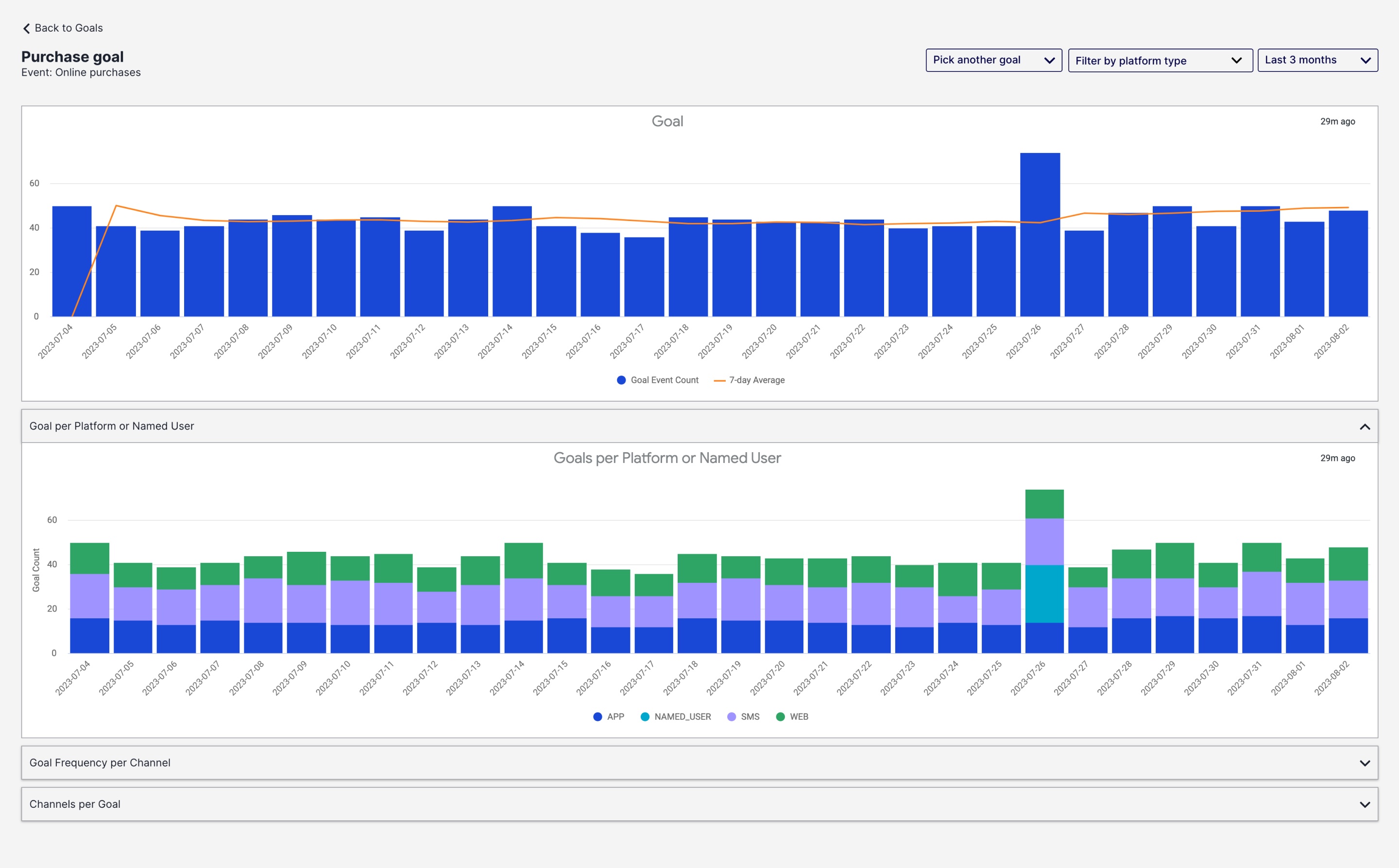
After creating a Goal, view its performance reports to analyze engagement and measure success. Go to Reports, then Goals, and select the chart icon for a Goal to open the reports:
| Report name | Description |
|---|---|
| Goal | The number of times the event occurred per day and the 7-day average. |
| Channels per goal | The number of ChannelsA communication medium supported by the Airship service. Supported channels include app, web, email, SMS, and Open Channels. Within some channels there may be specific platforms with individual characteristics. Example platforms include Chrome for the web channel and Android for the mobile app channel. that performed the event at least one time. You can filter by "greater than or equal to" and "is between" and enter values. |
| Goal frequency per channel | The frequency of event occurrence per ChannelA communication medium supported by the Airship service. Supported channels include app, web, email, SMS, and Open Channels. Within some channels there may be specific platforms with individual characteristics. Example platforms include Chrome for the web channel and Android for the mobile app channel.. Data points displayed: 50th (median), 75th, and 99th percentiles. |
| Goals per platform | The percentage of events that occurred per platform. Only appears if multiple platforms are configured for the project. |
The default view is the last three months of data. You can select a new time frame, and the reports will reload with the data for that period. For reports displaying multiple platforms, you can filter by one or more platforms.
Managing Goals
Edit, archive, and organize your Goals from the Goals list. Go to Reports, then Goals, to view the list of all your Goals. Toggle Active/Archived to switch between active and archived Goals. The default sort order is by last modified, and each row displays:
- Goal name
- Description
- Event
- Event category
- Date and time last modified (browser local time)
Select the pencil icon () to edit a Goal’s name, description, and event. Select the archive icon () to archive.
Categories