SMS/MMS/RCS content
Send messages to your SMS channel.
See also the SMS/MMS/RCS in the feature guide.
Create SMS content
In the Content step, select Text Message (SMS):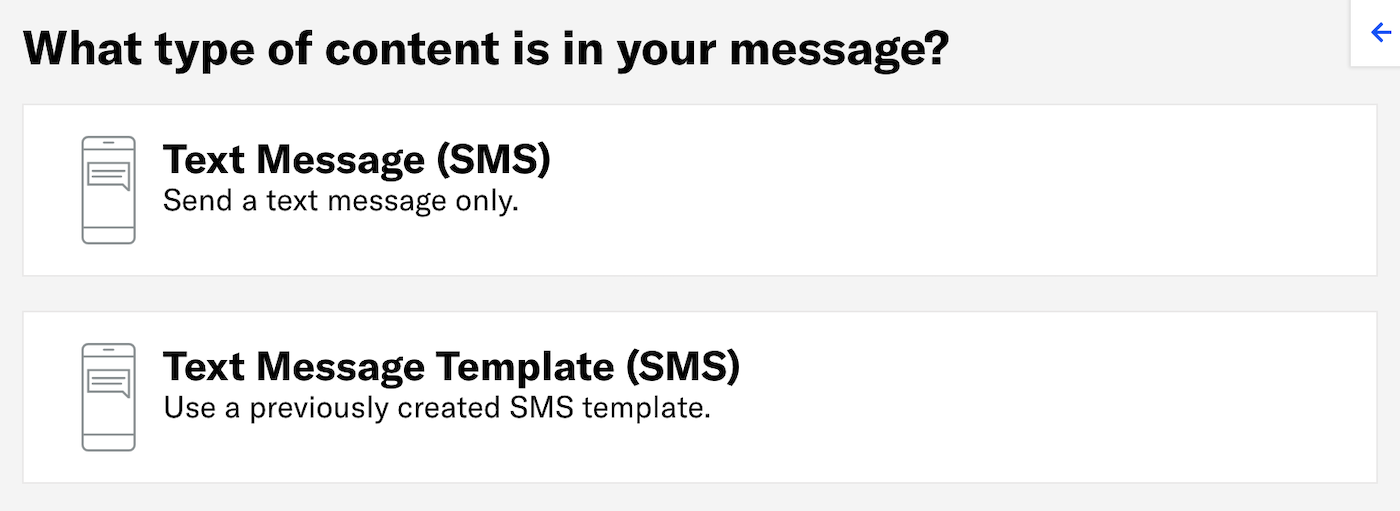
Now you can configure the body of the message: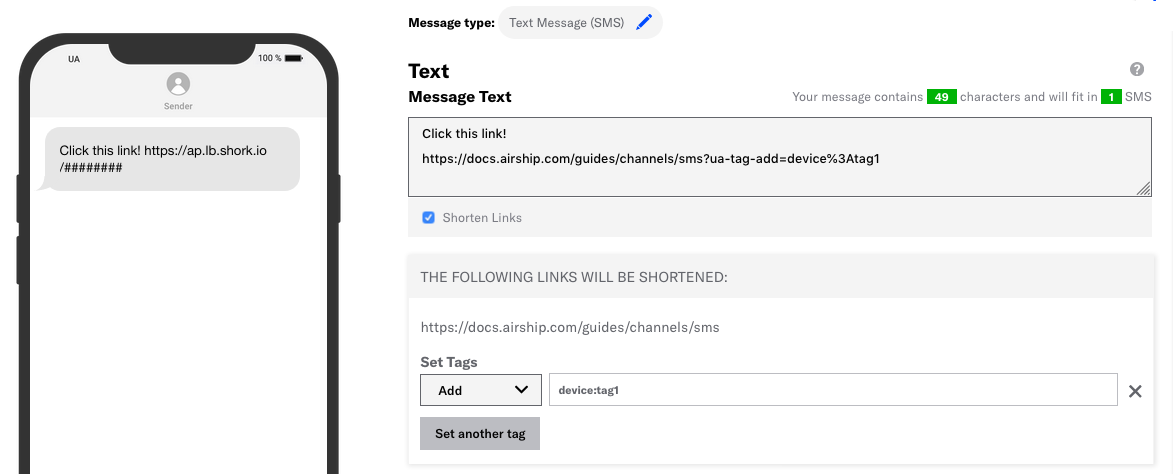
Enter the message text. If you are using HandlebarsHandlebars is Airship’s templating language for personalization. Handlebars expressions use double curly braces wrapped around a content template, ranging from a simple variable, e.g.,
{{first_name}}, to complex evaluations of personalization data., you can test how the content will appear. See Previewing personalized content.- The character count and the total number of SMS messages update as you type.
- Include Merge FieldsA variable in your message or template that you want to populate with a personalized value for each member of the audience. Merge fields use Handlebars syntax —
{{merge_field}}. or Dynamic ContentVariable message content created using Handlebars syntax. The content is populated at send time, resulting in personalized messaging for each member of your audience. if you selected Upload Users in the Audience step. The character and notification counts do not account for the varying lengths of merge values, so they should only be used as an estimate when using merge fields.
(Optional) If your message includes links, you can enable/disable Shorten Links. When enabled, the message and character counts reflect your message with shortened link URLs.
(Optional) If your message includes links and Shorten Links is enabled, you can add or remove tags for members of your audience who engage with your link.
- Select Set tags.
- Select Add or Remove, then search for tags that exist in the system, or create a new tag.
- (Optional) Select Set another tag and repeat the previous step.
Note If you create a new tag when adding tag actions, it will belong to the
devicetag group for associated SMS channels.
Now you are ready to complete the remaining steps in the composer.
Create MMS content
In the Content step, select Multimedia Message (MMS):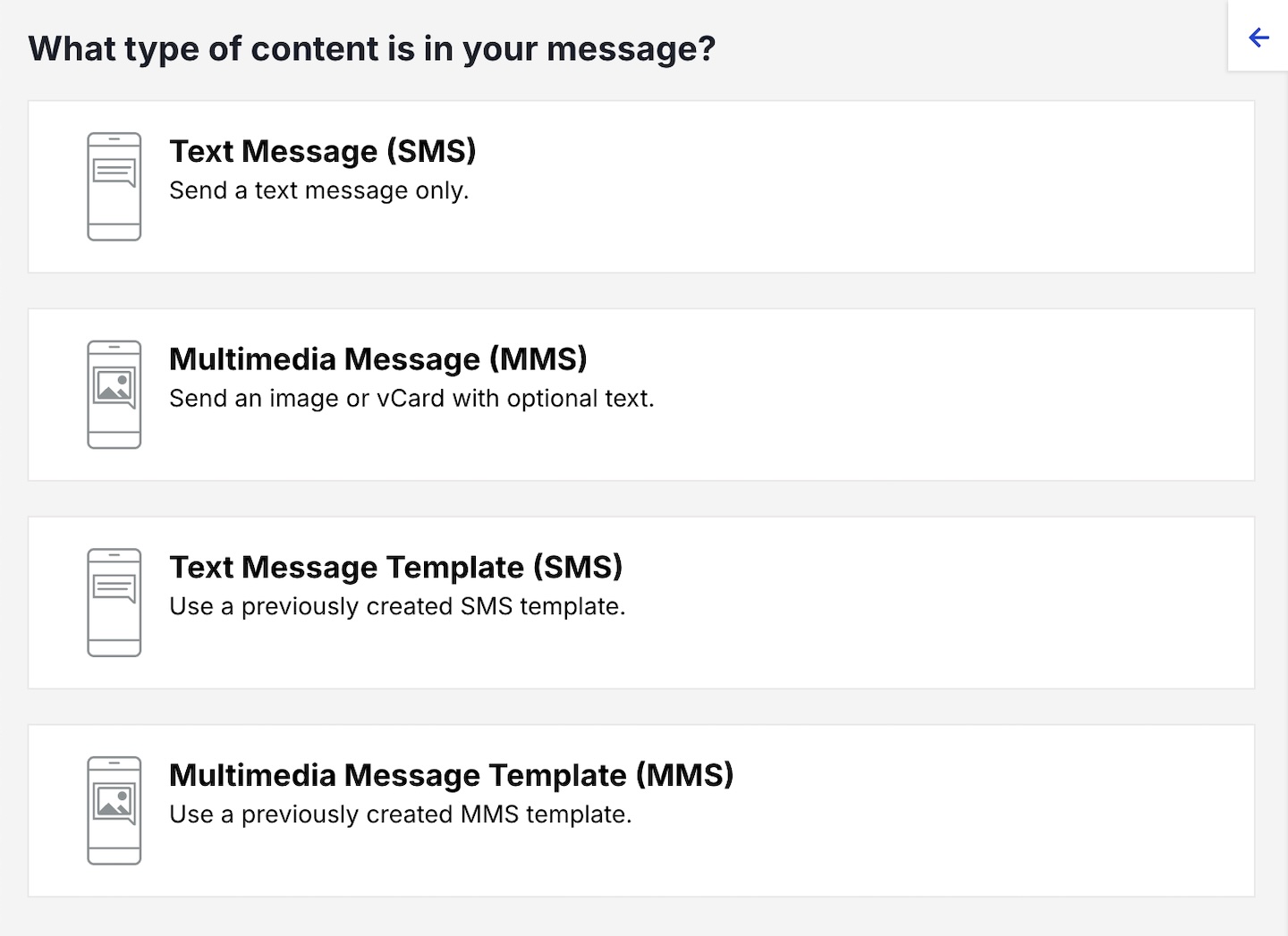
Now you can configure the body of the message: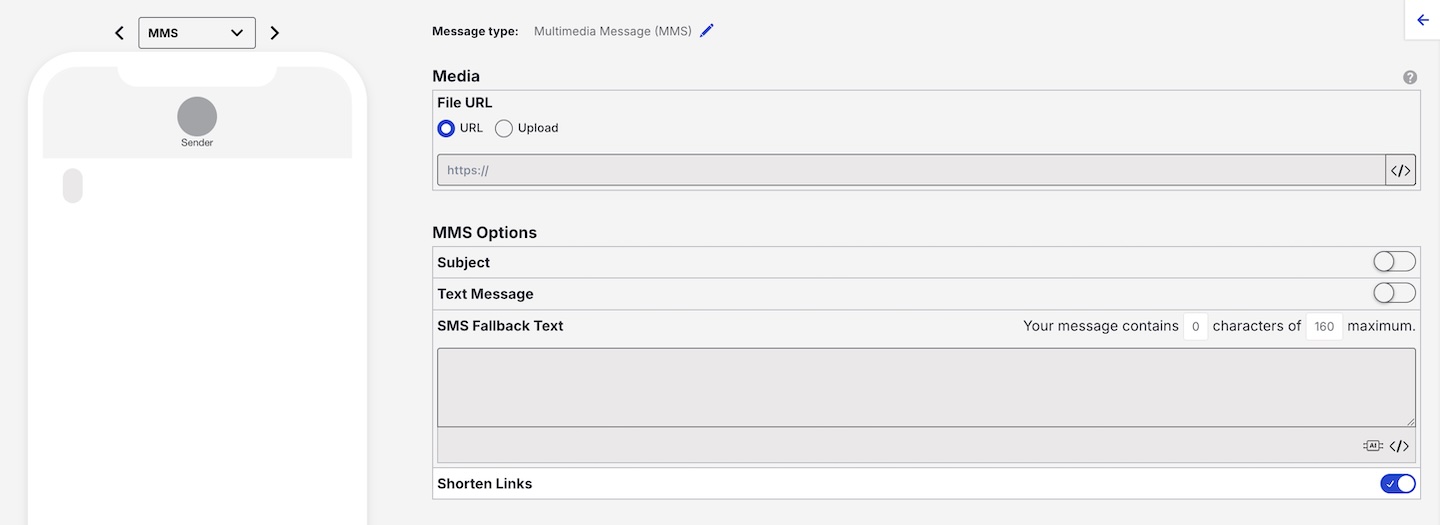
Provide the media for your message. See Media guidelines.
- URL — Enter the address of your image or vCard, beginning with HTTP or HTTPS and ending with the image or vCard extension.
- Upload — Select Choose file and select your image or vCard.
(Optional) Enter text for Subject, Text Message, and/or SMS Fallback Text. If you are using HandlebarsHandlebars is Airship’s templating language for personalization. Handlebars expressions use double curly braces wrapped around a content template, ranging from a simple variable, e.g.,
{{first_name}}, to complex evaluations of personalization data., you can preview how your content will appear. See Previewing personalized content.Include Merge FieldsA variable in your message or template that you want to populate with a personalized value for each member of the audience. Merge fields use Handlebars syntax —
{{merge_field}}. or Dynamic ContentVariable message content created using Handlebars syntax. The content is populated at send time, resulting in personalized messaging for each member of your audience. if you selected Upload Users in the Audience step. The fallback text character count does not account for the varying lengths of merge values, so it should only be used as an estimate when using merge fields.(Optional) If Text Message or SMS Fallback Text includes links, you can enable/disable Shorten Links. When enabled, the fallback text character count reflects your message with shortened link URLs.
(Optional) If Text Message or SMS Fallback Text includes links and Shorten Links is enabled, you can add or remove tags for members of your audience who engage with your link.
- Select Set tags.
- Select Add or Remove, then search for tags that exist in the system, or create a new tag.
- (Optional) Select Set another tag and repeat the previous step.
Note If you create a new tag when adding tag actions, it will belong to the
devicetag group for associated SMS channels.
Now you are ready to complete the remaining steps in the composer.
Link Shortening
When you enable link shortening, Airship replaces your URL with unique, shortened URLs for each member of your audience. Shortened URLs:
- Reduce the total number of characters in your messages to exactly 25 characters.
- Track engagement with SMS messages.
- Support tag actions — adding or removing tags from your audience when they tap a link.
- Expire 60 days after they are sent.
For Airship to recognize and shorten your links, your URLs must:
- Begin with
http://orhttps://. - Begin and end with a space. Your URL cannot contain beginning or trailing punctuation or space characters; spaces determine the beginning and end of the URL.
For more information, see Link Shortening in our SMS platform guide.
In the dashboard, you enable link shortening in the Content step in a composer. You can also set your project to automatically shorten links in all messages created using the dashboard:
- Next to your project name, select the dropdown menu (), then Settings.
- Under Project settings, select Dashboard Settings.
- Enable SMS Link Shortening.
Your project’s link shortening setting does not affect operations in the API.
Tag Actions
You can add or remove tags from users who engage with Airship-shortened links in your SMS messages. Shortened links with tag actions are the same length as URLs without. You can also use tag change events to kick off automation rules or sequences, making it easier to integrate SMS messaging campaigns into your larger messaging strategy.
Tag actions add query parameters to your URL, but users will still see the shortened URL in your SMS messages. You can perform up to 100 total tag actions (add and remove) per SMS message.
In the dashboard, a Set tags button appears when you add a URL in your SMS text (or SMS fallback text) and enable link shortening.