Push notification content
Send push notifications to your App channel.
See also the Push notifications feature guide.
Creating content
When creating messages, you configure its appearance in the Content step. In the Delivery step, you can configure content-related features that do not affect the appearance of the message.
Silent push notifications do not have visual content. In the Content step, click Silent Push Notification, then click Delivery in the header and complete the remaining steps in the composer.
The remainder of this section applies to regular push notifications.
In the Content step, click Push Notification then Add content: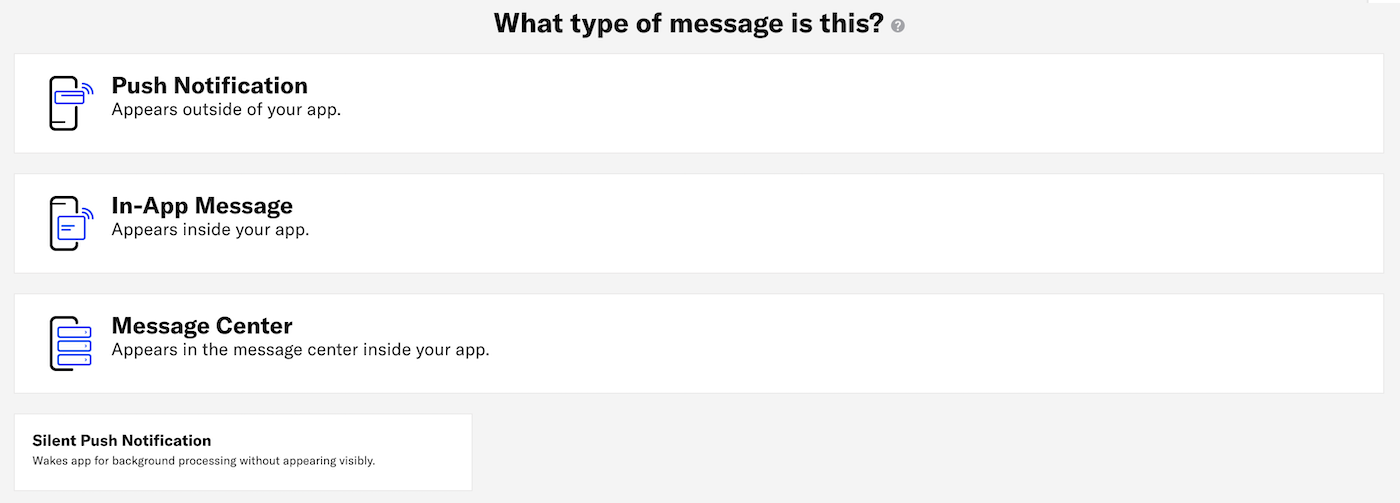
Now you can configure the body of the message: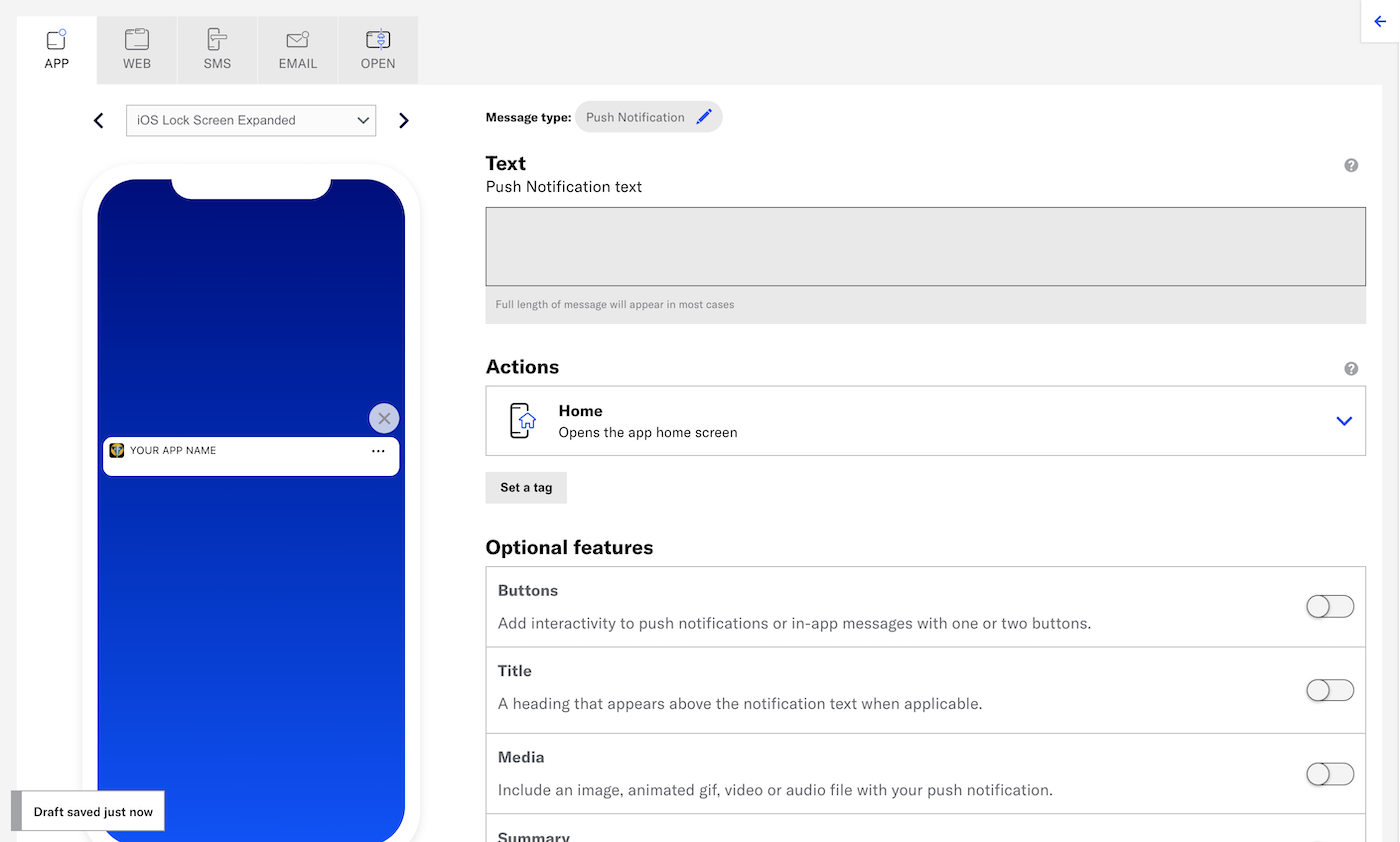
Enter the message text. If you are using HandlebarsHandlebars is Airship’s templating language for personalization. Handlebars expressions use double curly braces wrapped around a content template, ranging from a simple variable, e.g.,
{{first_name}}, to complex evaluations of personalization data., you can test how the content will appear. See Previewing personalized content.- Home
- Message Center
- Landing Page
- Deep Link
- Adaptive Link
- Web Page
- Share
(Optional) Set and/or remove tags when the user interacts with your message.
- Click Configure options.
- Select Add tag or Remove tag, then search for tags that exist in the system, or create a new tag.

- (Optional) Click Configure another option and repeat the previous step.
Tip Setting one or more tags when a user interacts with a message can help you track user interactions for follow-on retargeting campaigns. For example, if you set a tag
responded-campaign1, you can target users bearing theresponded-campaign1tag with another message at a later date, knowing that they are active users. Alternatively, you can re-engage users with this tag using an automated message if they are inactive for a period of time.(Optional)iOS SDK 20+Android SDK 20+ Emit a custom event when the user interacts with your message. You can select an existing event or name a new one.
You can also assign an event value and specify string, number, or boolean property values that you can use later when filtering Custom Events. If you want to use properties, you must define the event and its properties in your project in advance. See Manage Events.
- Select Configure options.
- Under Options, select Emit custom event and search for an event. If no result is found, select Use <event name> to add the event to your project.
- (Optional) Set an event value and/or specify property values to filter by in segments and triggers:
- Select Add event properties, then:
- For a value, select Add event value and enter a numeric value for the event.
- For properties, select Add property, then Search for properties, and then search for a string, number, or boolean event property and enter or select a value.
- Select Save.
- Select Add event properties, then:
Configure optional features:
Now you are ready to complete the remaining steps in the composer.
Media
Enter a URL to add media to your notifications. See also Media guidelines.
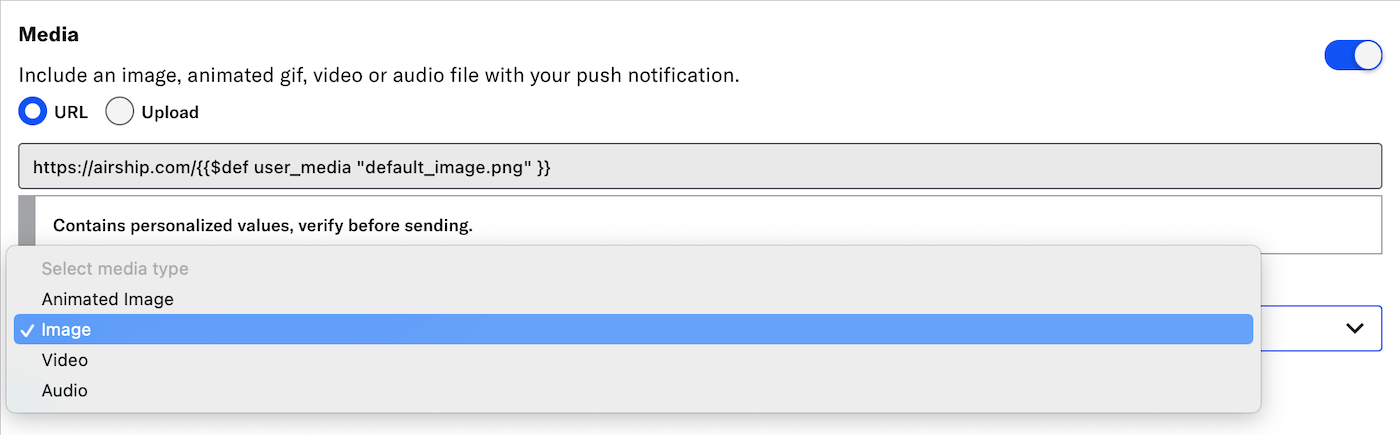
If using a personalized media URL for an App push notification, you must specify the media type after entering the URL:
When you enable both the iOS platform and one or more of Android and Fire OS, and you do not enter a static image in the initial URL field, a Static Image field is added to the media settings. Enter a URL, or use the Upload option.
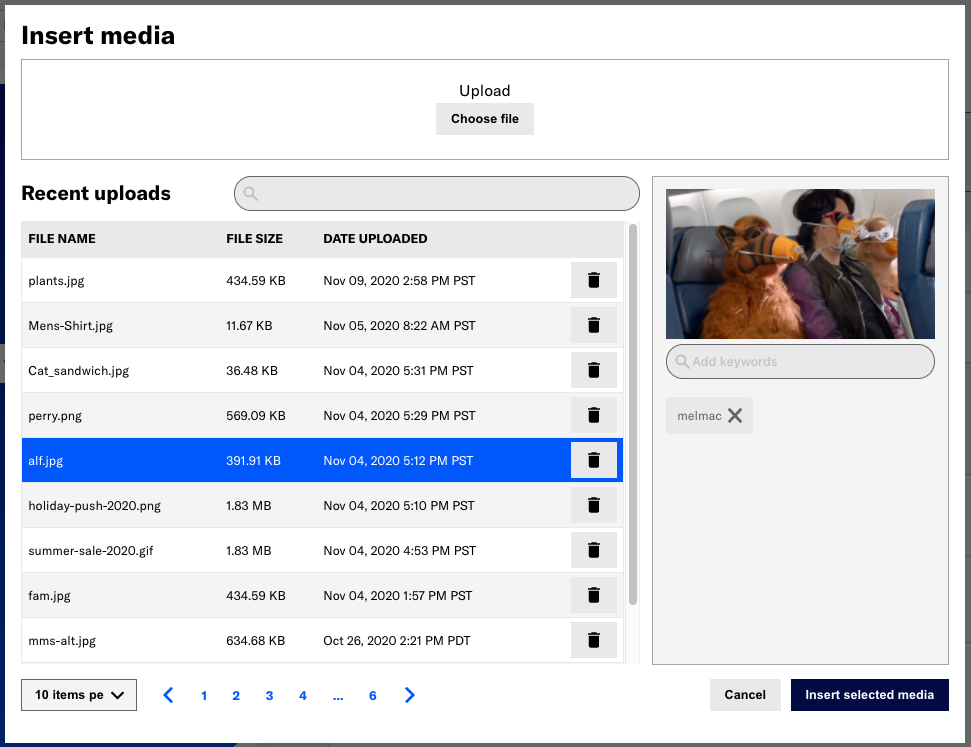
If your Airship plan includes CDN support, you can also upload media or select from previously uploaded media:
- Select Upload and click Insert Media.
For additional information, see Media library.
Summary
Add a summary line as supplemental text displayed with the notification.
- iOS: The summary appears below the push notification title.
- Android and Fire OS: The summary appears below the main notification text in most cases. This is the only visible text other than the title when Android Picture is visible in expanded mode, as the main notification text is suppressed.
Title
Enter a title to create a heading that appears above the notification text in:
- iOS Notification Center
- Apple Watch Looks
- Android and Fire OS Notification Area/Drawer
Default notification character limits
The following tables outline the maximum character counts for default notification display.
iOS
| Device | Display | Lock screen Portrait | Lock screen Landscape | Notification Center | Banner style | Alert view |
|---|---|---|---|---|---|---|
| iPhone 14 Pro Max | 6.7 in (170 mm) 2796 x 1290 px at 460 ppi | 150 chars | n/a | 150 chars | n/a | n/a |
| iPhone 14 Pro | 6.1 in (154 mm) 2556 x 1179 px at 460 ppi | 150 chars | n/a | 150 chars | n/a | n/a |
| iPhone 14 | 6.1 in (154 mm) 2532 x 1170 px at 460 ppi | 150 chars | n/a | 150 chars | n/a | n/a |
| iPhone 14 Plus | 6.7 in (170 mm) 2778 x 1284 px at 458 ppi | 150 chars | n/a | 150 chars | n/a | n/a |
| iPhone 13 Pro Max | 6.7 in (170 mm) 2778 x 1284 px at 458 ppi | 150 chars | n/a | 150 chars | n/a | n/a |
| iPhone 13 Pro | 6 in (152 mm) 2532 x 1170 px at 460 ppi | 150 chars | n/a | 150 chars | n/a | n/a |
| iPhone 13 | 6.1 in (152 mm) 2340 x 1080 px at 460 ppi | 150 chars | n/a | 150 chars | n/a | n/a |
| iPhone 13 mini | 5.4 in (127 mm) 2340 x 1080 px at 476 ppi | 150 chars | n/a | 150 chars | n/a | n/a |
| iPhone 12 Pro Max
| 6.6 in (169 mm) 2532 × 1170 px at 470 ppi | 150 chars | n/a | 150 chars | n/a | n/a |
| iPhone 12 Pro
| 6.6 in (169 mm) 2532 × 1170 px at 470 ppi | 150 chars | n/a | 150 chars | n/a | n/a |
| iPhone 12 | 6 in (154 mm) 2532 x 1170 px at 460 ppi | 150 chars | n/a | 150 chars | n/a | n/a |
| iPhone 12 mini | 5.4 in (137 mm) 2340 x 1080 px at 476 ppi | 150 chars | n/a | 150 chars | n/a | n/a |
| iPhone SE (2nd generation) | 4.7 in (119 mm) 1334 × 750 px at 326 ppi | 150 chars | n/a | 150 chars | n/a | n/a |
| iPhone 11 Pro Max | 6.4 in (164 mm) 2688 x 1242 px at 458 ppi | 150 chars | n/a | 150 chars | n/a | n/a |
| iPhone 11 Pro | 5.8 in (148 mm) 2436 x 1125 px at 458 ppi | 150 chars | n/a | 150 chars | n/a | n/a |
| iPhone 11 | 6 in (154 mm) 1792 x 828 px at 326 ppi | 150 chars | n/a | 150 chars | n/a | n/a |
| iPhone XS Max | 6.5 in (165 mm) 2688 x 1242 px at 458 ppi | 150 chars | n/a | 150 chars | n/a | n/a |
| iPhone 6/6S/7 Plus | 5.5 in (140 mm) 1920 x 1080 px at 401 ppi | 156 chars | n/a | 156 chars | 98 chars | 1,283 chars, scroll for more |
| iPhone 6/6S/7 | 4.7 in (120 mm) 1334 x 750 px at 326 ppi | 148 chars | n/a | 148 chars | 89 chars | 1,217 chars, scroll for more |
| iPhone 5/5C/5S iPod touch (5th/6th generation) | 4 in (100 mm) 1136 x 640 px at 326 ppi | 119 chars | n/a | 119 chars | 74 chars | 1,013 chars, no scroll |
| iPhone 4/4S iPod touch (4th generation, A1367) | 3.5 in (89 mm) 960 x 640 px at 326 ppi | 114 chars | n/a | 166 chars | 43 chars | 153 chars, no scroll |
| iPad Air (3rd generation) | 10.5 in (267 mm) 2224 x 1668 px at 264 ppi | 220 chars | n/a | 220 chars | n/a | n/a |
| iPad mini (1st generation, A1432) | 7.9 in (200 mm) 1024 x 768 px at 163 ppi | 211 chars | 220 chars | 229 chars | 124 chars | Portrait: 1,957 chars, Landscape: 1,417 chars |
Android
| Device | Display | Lock screen Portrait | Lock screen Landscape | Notification drawer Default notification Big text style | Notification drawer System notification |
|---|---|---|---|---|---|
| Nexus 9 tablet | 8.9 in (230 mm) 2048 x 1536 px at 287 ppi | 44 chars | 44 chars | 536 chars | 44 chars |
| Nexus 7 tablet 2013 version | 7.02 (178 mm) 1920 x 1200 px at 323 ppi | 42 chars | n/a | 509 chars | 42 chars |
| Nexus 6P phone | 5.7 in (140 mm) 1440 x 2560 px at 518 ppi | 37 chars | n/a | 444 chars | 37 chars |
| Nexus 5X phone | 5.2 in (130 mm) 1080 x 1920 px at 423 ppi | 46 chars | n/a | 562 chars | 46 chars |
| Nexus 6 phone | 5.96 in (151 mm) 1440 x 2560 px at 493 ppi | 37 chars | n/a | 444 chars | 37 chars |
| Nexus 5 phone | 4.95 in (126 mm) 1080 x 1920 px at 445 ppi | 37 chars | n/a | 444 chars | 37 chars |
| Nexus 4 phone | 4.7 in (120 mm) 768 x 1280 px at 320 ppi | 40 chars | n/a | 482 chars | 40 chars |