Surveys and Stories
Configure a Scene as a survey to collect user feedback. Enable Story mode for auto-advancing experiences.
Surveys
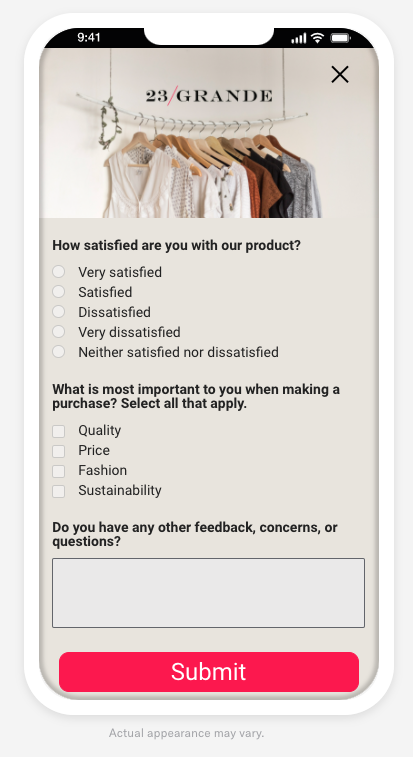
Respond to user behaviors instantly by presenting a survey at the best time, giving you precise control of the user experience.
You can add questions and/or the Net Promoter Score (NPS) element to create a survey.
An NPS survey is based on the net promoter score metric, which measures how likely it is that your users would recommend your brand or product to a friend or colleague. This can be used to measure their overall sentiment about your brand or product (known as relational NPS) or about a specific experience or transaction such as booking a flight (known as transactional NPS). The survey format is a question with answer scale 0-10.
You can also create a confirmation screen that appears when a user submits their answers.
Instead of starting from scratch, you can select the NPS or User Feedback default content layout. After selection, you can customize the questions and design.
NPS segmentation
For NPS surveys, Airship automatically generates AttributesMetadata used for audience segmentation and personalization. They extend the concept of Tags by adding comparison operators and values to determine whether or not to target a user, helping you better evaluate your audience. based on the following data:
- NPS Score is the score submitted by the user: 0-10.
- NPS Category is one of three categories based on the NPS Score. Ratings 9 and 10 have category Promoter, 7 and 8 are Passive, and 6 or lower are Detractor.
Story mode
iOS SDK 17+Android SDK 17+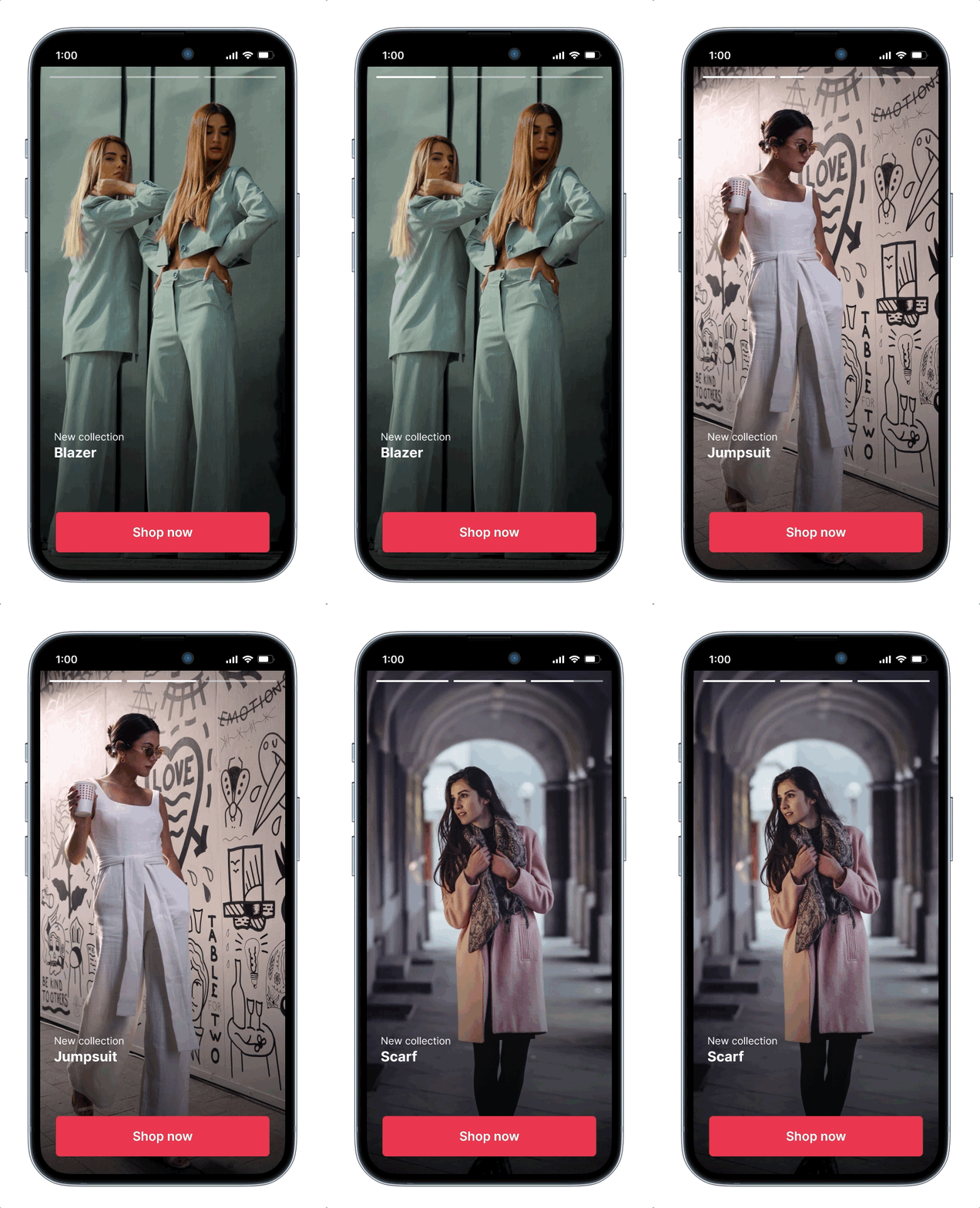
The default behavior of a Scene requires the user to swipe between screens. Story mode enables automatic transitions to the next screen without requiring swiping.
When configuring Story mode, you set how long each screen is displayed (1-60 seconds) and determine what happens after the story ends: Loop, display the last screen, or dismiss the Scene.
When viewing a story, a progress bar indicates the number of screens and their remaining duration. Users can navigate between screens, pause playback, and close the Scene using tap, swipe, and hold gestures:
- Tap the right side of a Scene to go to the next screen and tap the left side to go to the previous screen
- Tap and hold anywhere on the Scene to pause
- Tap outside of a non-fullscreen Scene to close
- Swipe down within the Scene or tap the Dismiss button () to close
Story mode does not support:
- Scrolling — Make sure to design screens for small device dimensions to eliminate the appearance of a non-functional scroll bar.
- Questions or NPS
- BranchingA way to create a custom user path through a Scene’s screens. A user’s interactions and responses on the current screen determine which screen appears next.
Set Story mode in the Content step of a Scene. See Set Scene behaviors in Configuring Scene content.