Embedded Content
Embed Scene content inline within your app or web screens to create seamless, contextual experiences. iOS SDK 18.7+Android SDK 18.1.4+ AXP
About Embedded Content
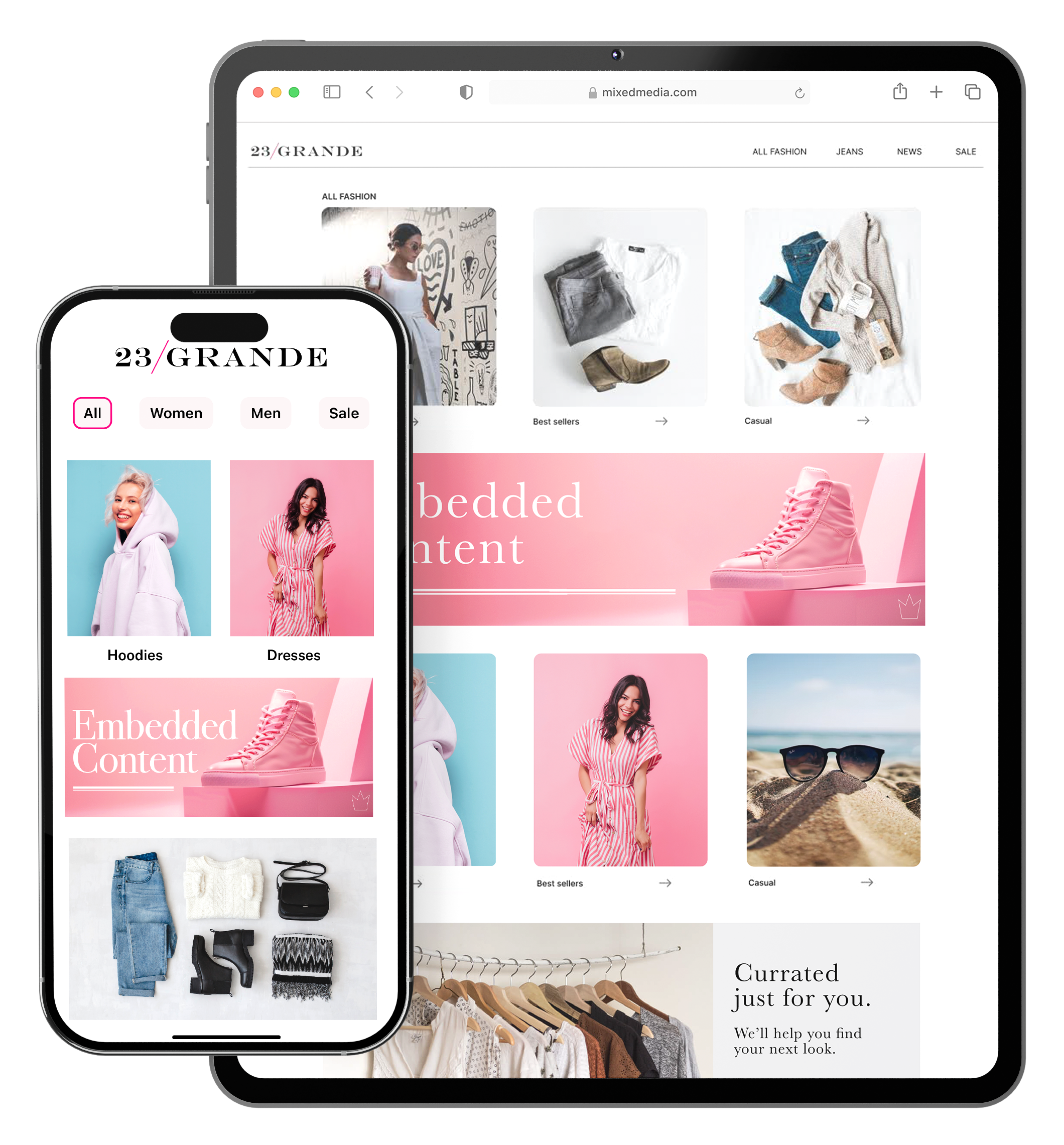
Embedded Content is an alternative Scene format that can be displayed on any app or web screen in a view defined by a developer. It can also be presented in Story format.
Seamless inline experiences — Present Scene content within your app or website screens, naturally fitting into your existing flow.
Integrated display — Unlike modal or fullscreen Scenes that appear as overlays, Embedded Content appears directly within your existing views, making it ideal for promotional banners, contextual messaging, and personalized content cards.
Use Embedded Content to:
- Display contextual messages — Show relevant content inline with your existing UI, such as promotional banners on a home screen or product recommendations within a shopping flow.
- Personalize content — Use audience targeting and Scene capabilities to show different content to different users in the same view location.
- Test and iterate — Update content remotely without requiring app updates, allowing you to test different messages and layouts quickly.
Consider using modal or fullscreen Scenes instead when you need to:
- Capture immediate attention with an overlay
- Display important announcements or critical actions
- Show content that requires full user focus
How Embedded Content works
There are three primary components that work together to display Embedded Content. Components 1 and 2 can be created in any order, as long as their IDs match:
A “view” in your app or website where Scene content will display — An app developer creates an embedded view component, such as
AirshipEmbeddedViewfor iOS, that controls the dimensions of the content and its location. A web developer creates an HTML container where Scene content will be rendered. For both, they also determine what content can be displayed in the view by setting a value for the view’sembeddedIdthat matches the ID of an Embedded Content view style.A view style in your project settings — A marketer creates an Embedded Content view style and assigns an ID for reference in the app or web view’s
embeddedId.A Scene using an Embedded Content view style — This is the source of the content that will be displayed in the view.
Once the Scene is triggered for display and matches the specified audience conditions, its content is available to users when visiting an app screen or web page that contains the view.
The view is populated with the content from all active Scenes with the matching ID, sorted based on priority. When an embedded view loads content, the highest priority Scene that is queued for display will be shown. The same content will be shown across app and web sessions until it is dismissed by the user or is no longer available. The view will then show the next Scene with the highest priority from the display queue.
Airship first prepares the content when the triggering event occurs and then refreshes it upon every app open or web session start. This ensures that users always experience the most up-to-date message. So, after updating active Embedded Content, users will see the latest version the next time they visit an app screen or web page containing the view.
Getting started with Embedded Content
Follow these steps to start using Embedded Content with Airship:
- Create a “view” in your app or website where Scene content will display See the Embedded Content developer documentation for mobile app and web.
- Create an Embedded Content view style with an ID matching the app or web view’s
embeddedIdSee Set Embedded Content view styles in In-App Experience Defaults.
With the above in place, you can create a Scene. In the Content step, select your Embedded Content view style when setting the Scene’s root appearance.