Message Center
Message Center is both a place in your app where you can display persistent rich messages, including HTML, video, etc., and a message type. Similar to email, Message Center represents both the medium (the in-app inbox) and the message type (the messages you send to the inbox).
About Message Center
In reporting and other areas of Airship, a Message Center message may be referred to as a rich page.
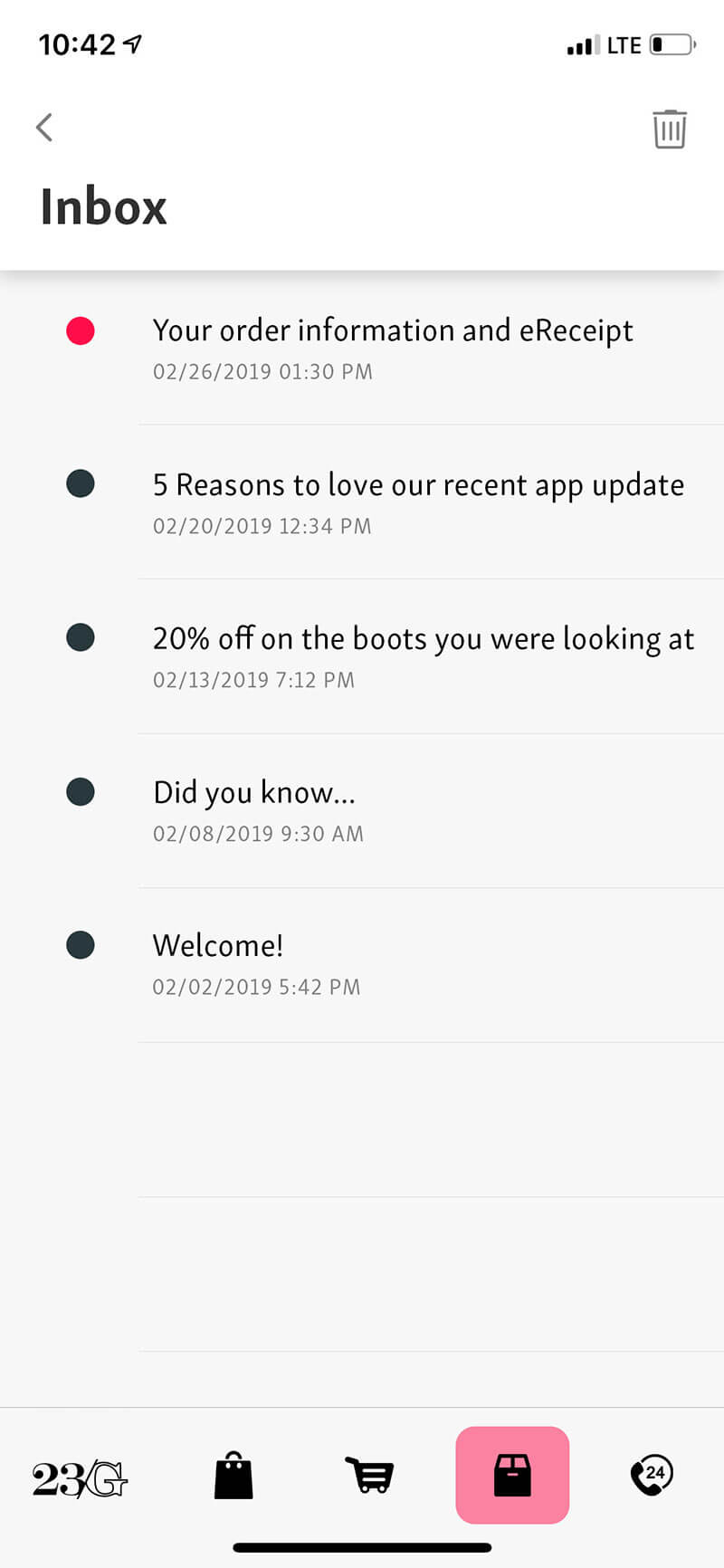
Reach opted-out users — Message Center messages are not push notifications, but you can use push notifications to alert users that new rich content is available. Because Message Center messages do not require a user to opt in to push notifications, you can reach your opted-out audience with Message Center.
More opportunities to engage — When users interact with Message Center, e.g., read, delete, tap a button, Airship tracks the interactions and makes them available via our analytics offerings, Real-Time Data StreamingA service that delivers user-level events in real time to your backend or third-party systems using the Data Streaming API. and Performance AnalyticsA customizable marketing intelligence tool that provides access to reports and graphs based on engagement data..
By providing engaging content and facilitating interactions via Message Center, you can also trigger other ActionsA configurable behavior that occurs when a user interacts with your message, e.g., opening a web page. such as adding a tag, or triggering a follow-up notification.
Theming — Change your Message Center colors, fonts, backgrounds, and icons to match your branding.
Airship hosting — Your message content is hosted by Airship.
More benefits:
- Persistent inbox
- Customized per user, according to how you target individual users
- Tracking of message state per user: Read, unread, deleted, etc.
- Customize UI, or use out-of-the-box
- Data/Reporting
- JavaScript Bridge
You can combine a Message Center message with a Push NotificationA message that can appear on any screen on a mobile device. Push notifications appear as banners. and/or In-App MessageA message that appears inside of your app. You can send in-app messages to your entire app audience, not just users who have opted-in to push notifications. The standard format, as opposed to In-App Automation, is a banner that slides downward or upward from the top or bottom of a device screen. message.
When combining a push notification and Message Center, Airship sends the Message Center message to both opted-in and opted-out devices.
Appearance and behavior
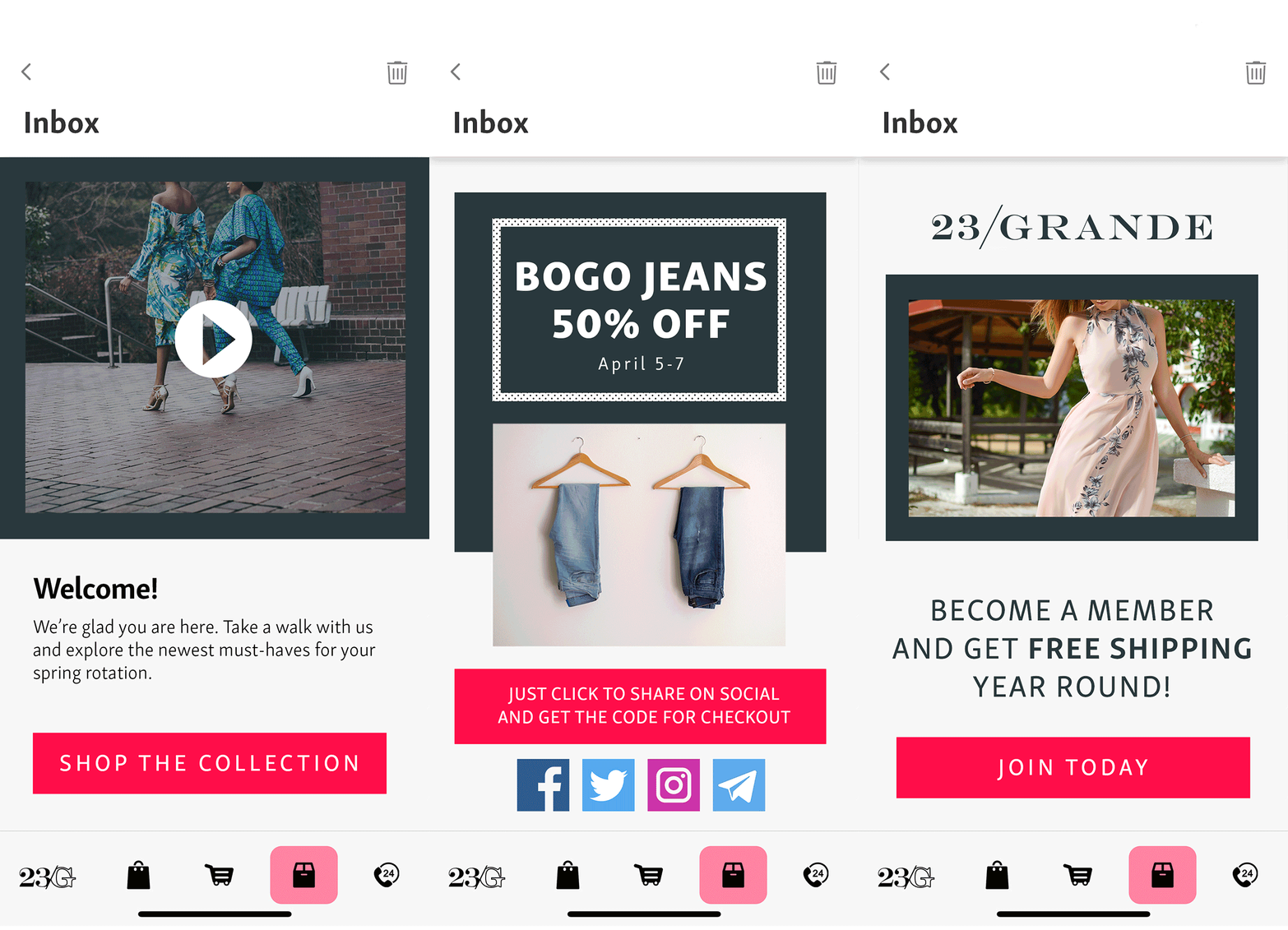
Users access Message Center messages from the Message Center inbox in your app. Messages are fullscreen, with navigation back to the inbox at the top of the screen. You can configure a push notification or in-app message to open a Message Center message.
- Inboxes are limited to 250 messages. Exceeding the limit deletes the oldest messages first.
- Messages remain in the inbox until expired or deleted.
- Messages expire after one year or according to individual message expiration setting.
To create the message content, you can either upload your own HTML or design using our WYSIWYG editor. Airship supplies several default layouts. You can also create and save your own layouts for use in new messages.
Inbox preview — The inbox supports a message preview of a thumbnail image and one or two lines of text
Expiration and you can specify an expiration date, when the message is removed from the inbox.
Custom templates — Airship can create and add custom message templates for you. Contact your Airship account manager if you are interested in adding custom templates to your project.
Theming your Message Center requires changes to the configuration file in your iOS or Android/Fire OS project. See Message Center for iOS and Message Center for Android.
Getting started with Message Center
Follow these steps to start using Message Center with Airship:
- Configure mobile channels in your project settings See Configuring Mobile Channels in the Getting Started guide.
- Integrate the Mobile SDK with your app See SDK setup for mobile apps in our developer documentation.
- Install and theme your Message Center See Message Center in our developer documentation.
Once your project is set up, you can start creating Message Center content.