Send messages to registered email addresses.
About email
You can send email to your registered users. Email features include:
- Registration and unsubscribe capabilities
- Aggregate dashboards for real-time updates
- Performance AnalyticsA customizable marketing intelligence tool that provides access to reports and graphs based on engagement data. support to view send and deliverability metrics
- Real-Time Data StreamingA service that delivers user-level events in real time to your backend or third-party systems using the Data Streaming API. support to send deliverability metrics to a central data lake
Use cases
- Multi-channel transactional messaging
- Urgent transactional message directed to multiple channels, e.g., send notification via both push and email
- Notification-style email
- Promotional blast messaging: great for Retail, Sports/Entertainment, and Travel verticals
- Breaking news alerts for the Media industry
- Promotional mobile wallet delivery, such as coupons and loyalty cards
- Priority channel
- Allow users to set their preferred delivery channel as email for certain types of messaging, so as not to alert them on multiple channels, e.g., app and web, for the same content
Industry examples:
- Retail — Send an email for app re-acquisition if a user churns, onboarding, coupon and loyalty pass delivery, and more.
- Media — Send highly-segmented news updates.
- Travel and Hospitality — Send boarding passes, day of travel updates, and reservation reminders.
Appearance and behavior
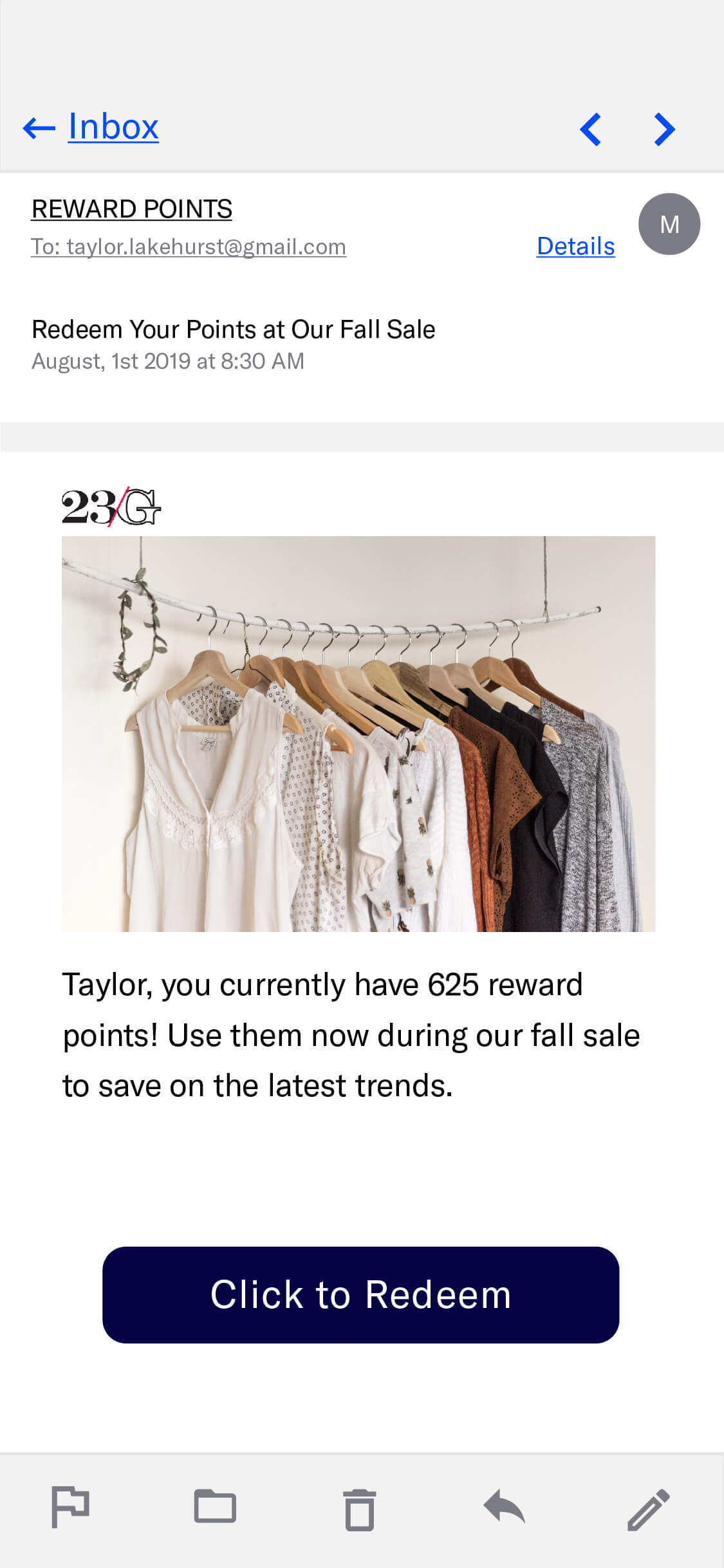
Email appears in the recipient’s inbox and is displayed upon opening the message. Email is PersistentMessage content that remains available even if the alerts for the message are dismissed. For example, Message Center, email, and SMS content can be viewed in the app’s Message Center, email inbox, or the device’s native SMS client until the message is deleted by its recipient. Non-persistent message types become unavailable when users dismiss them. A message’s linked content, e.g., a web link, deep link, an Apple News story, remains available as determined by the source host., remaining viewable until deleted by the user.
Components of an email:
Subject — Preheader text is optional.
Message body — HTML is optional, plain text is required. Users who cannot receive HTML emails will receive the plain text version. See also: Media guidelines.
An unsubscribe link is required within the message body for commercial email. You can also provide unsubscribe links for messages sent to Subscription ListsAn audience list of users who are opted in to messaging about a specific topic. Users can manage their opt-in status per list using a Preference Center.. See: Email unsubscribe links.
For the HTML body, you can either provide your own HTML or design using Airship’s WYSIWYG Editor. The WYSIWYG editor produces HTML that is compatible with any email client that accepts HTML emails, making sure that your audience sees the best version of your message.
As new versions of Outlook and other clients are released, we make sure your HTML will work with them too. You can choose one of Airship’s default layouts to get started or you can design your own. You can also save layouts you design and reuse them for other messages.
Preheader text
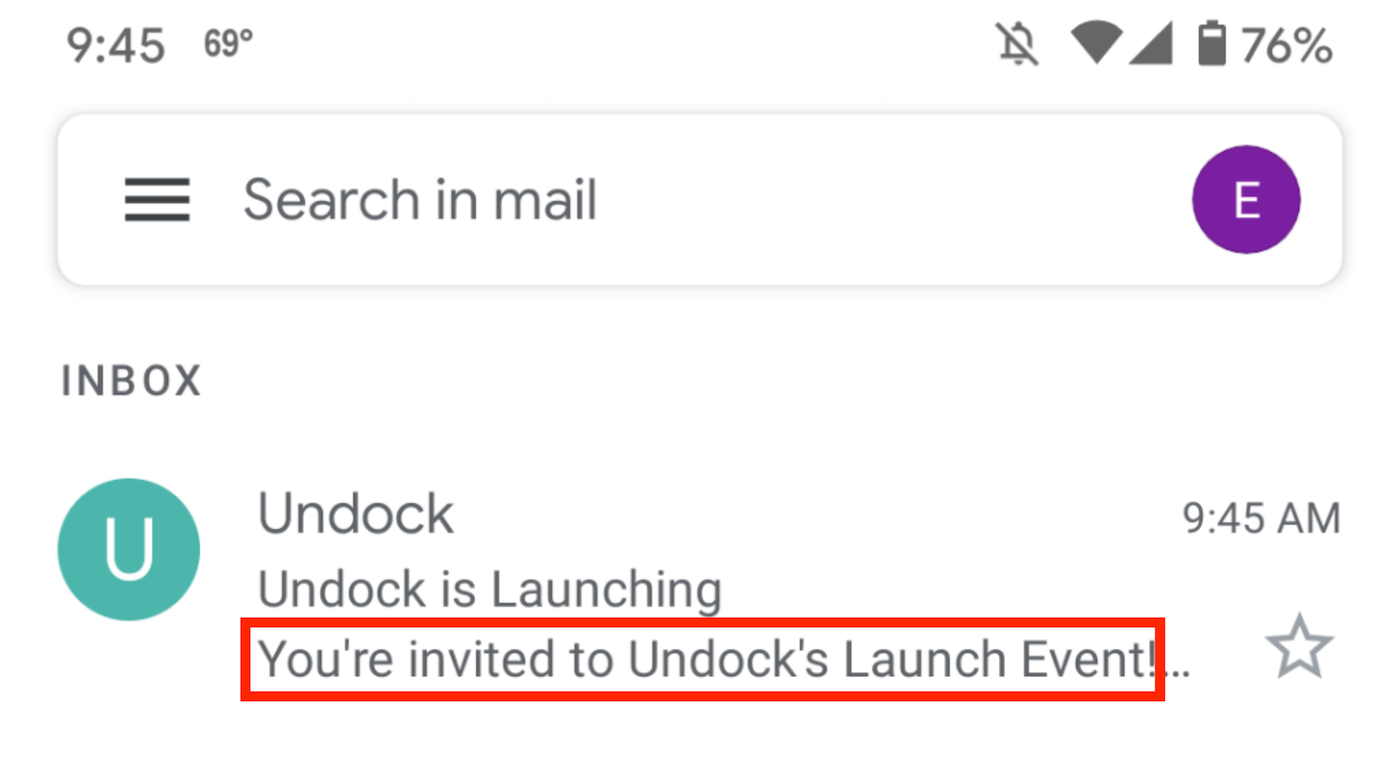
Preheader text is a short line of text that displays after or below an email subject line in an inbox. You can also have the text appear in the message body. Preheader text is an easy way to expand on your subject line and improve email open rates. Not all email clients support preheader text. These examples show preheader text following the subject “Undock is Launching”:

Disabling click tracking
When creating a message, you can set click tracking behavior in its sender information. When tracking is enabled, you can override the setting and disable tracking for message specific links and actions.
See Disabling click tracking for specific links in Email content.
Plain text generation
When editing your HTML content in the dashboard, Airship prompts you to automatically generate a plain text version when you save your changes. Your HTML content, including links, is converted and populated into the Plain text body field. You can then edit the plain text version as needed. The prompt appears when saving pasted or uploaded HTML and when saving changes in the WYSIWYG editor.
Having a complete plain text body for your email helps support the following:
- Better deliverability — Email providers favor messages with both HTML and plain text versions.
- Accessibility — Users with visual impairments benefit from plain text content that is easily consumable by assistive technologies such as screen readers.
- Fallback support — Email clients unable to render HTML default to displaying the plain text version.
The auto-generated plain text maintains the structure and links from your HTML content, which you can then review and customize as needed.
Inbox previews
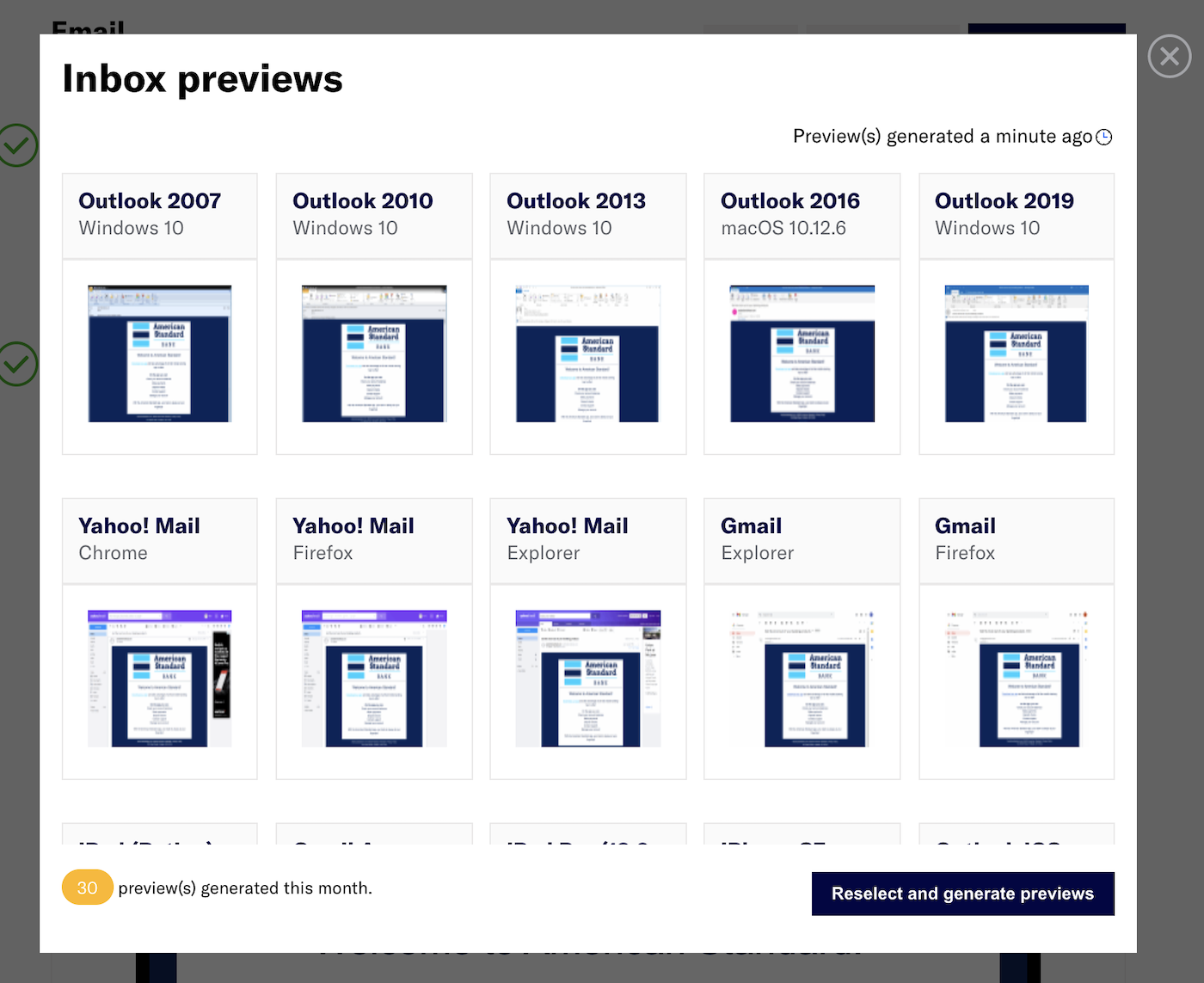
Before sending your message, you can preview what it will look like in various email clients. After adding the HTML body in a message or template, you can select Inbox preview and choose from a list of browser, desktop, and mobile clients. 90+ different client and device combinations are supported.
Inbox previews must be enabled for your account. Contact your Airship account manager if they do not appear for your projects.
See Inbox previews in Email content.
Link names
Name your email links to better understand their performance. When users follow links in an email, the URLs and related metrics appear in the Performance section of a message report. Link names also appear in Real-Time Data StreamingA service that delivers user-level events in real time to your backend or third-party systems using the Data Streaming API..
Use cases:
Differentiation — In an email containing three links with identical URLs for a login page, you could differentiate them by specifying their location within the message by using link names “Login header,” “Login body”, and “Login footer”.
Grouping — In an email with multiple links in different languages that all go to the same localized home page, you could use link names “English (US)” and “English (Germany)” for URLs
https://www.example.com/en_us/homeandhttps://www.example.com/en_de/home. But if you wanted to see a total count for all links to the homepage, you could use the same “Homepage” link name for all the links instead of naming them for each locale.Segmentation — Create a SegmentA grouping of audience members selected by unique or shared identifiers. Multiple identifiers can be combined within a Segment. of users who followed links by specifying the link name for the
email_clickevent. Link names are easier to work with than dynamic or localized URLs when building Segments for retargeting users.
See Link names in Email content.
URL parameters
URL parameters are variables you can automatically append to all link URLs in emails. They function as tags for tracking campaign performance, both on the web and in an app. You can use platforms like Google Analytics to track user behavior after they’ve followed a link. Add your own custom parameters and/or supply values for UTM parameters defined in Airship.
See URL parameters in Email content.
HTML minification
Reducing message size can help with deliverability and avoiding message truncation by email clients. When using the WYSIWYG editor for an email HTML body, you can reduce the overall size of your content by up to 25% by compressing code spacing and removing unused class names and CSS styles. You must request enabling this feature for your projects.
For details, see Size limit and HTML minification in Email content.
Blind carbon copies (BCC)
Contact your Airship account manager to enable blind copy (BCC) capabilities for your emails. Because emails can contain personal information about your audience, you must register the addresses that you want to use for blind copies with Airship.
Unsubscribe events
Airship reflects unsubscribe events in the Real-Time Data Stream. When users unsubscribe, Airship also assigns them commercial_opted_out or transactional_opted_out values based on the type of email they unsubscribed from.
Preference Centers
A Preference Center is a page where users can manage their opt-in statuses for the Subscription Lists in your project. Preference Centers are presented within your app or website or as an Airship-hosted web page.Design a web page in the Airship dashboard and select a Preference Center to appear on the page. After saving, you can copy the web page link and include it in your email to a Subscription ListAn audience list of users who are opted in to messaging about a specific topic. Users can manage their opt-in status per list using a Preference Center.. No development work is required.
Getting started with Email
Follow these steps to start using Email with Airship:
- Add the Email channel to your project Contact Airship Sales to provision your project for Email.
- Register users See Getting Started for Email integration in our developer documentation.
Once your project is set up, you can start creating Email content.